Want to customize the startup logo on your CarTrimHome C12 head unit? Follow the steps below.
Step 1: Download the Logo Update Files
Please download the corresponding package based on your C12 hardware version:
7862 (4GB+64GB / 8GB+128GB)
https://cartrimhome.cn/our_dw/lsec6315update
7865
https://cartrimhome.cn/our_dw/lsec6319update
7870 (12GB+256GB)
https://cartrimhome.cn/our_dw/lsec6318update
Step 2: Prepare Your Logo Image
Requirements:
Step 3: Prepare a USB Drive
- Format a USB flash drive.
- Copy the downloaded update files to the root directory of the USB drive.
- Copy your customized logo.bmp file to the root directory as well.
The USB drive should contain:
USB Drive
├── update files
└── logo.bmp
Step 4: Install the New Logo
- Start the vehicle and power on the C12.
- Insert the USB drive into the C12 USB port.
- The system will automatically detect the update package.
- When the update prompt appears, click Start Update.
- Wait for the process to complete and the unit to reboot.
Notes
- The image must be in BMP format and named exactly logo.bmp.
- Do not disconnect power during the update process.
- If the update prompt does not appear, verify that the correct update package was downloaded for your hardware version and that the files are located in the root directory of the USB drive.
Enjoy your personalized startup logo!
Has anyone had success in changing the Android Boot logo following these directions? I downloaded the correct update package (6315) based on my C12 unit and added a Toyota logo BMP file with no results. The C12 unit sees the update file when viewed through file explorer, but nothing happens.
Could you please record a video of the process and send it to us? This will help us check exactly where the issue occurs.
Also, could you please confirm whether you are following the steps below to modify the startup logo?
How to Modify the Startup Logo
1. Download the corresponding update files:
For 7862 → 4+64G / 8+128G:
https://cartrimhome.cn/our_dw/lsec6315update
For 7870 → 12+256G:
https://cartrimhome.cn/our_dw/lsec6318update
2. Prepare a 1024 × 600 px image (other specifications may also be supported). The image must be in BMP format and named logo.
3. Prepare a USB flash drive and format it.
4. Copy the downloaded files and the logo image to the USB flash drive.
5. Connect the USB flash drive to the USB port of the C12.
6. The C12 should automatically detect the update and display an update prompt. Click Start to begin the process.
If possible, please record the video starting from preparing the USB drive and files through the update process, including any message or prompt that appears on the C12.
Thank you!
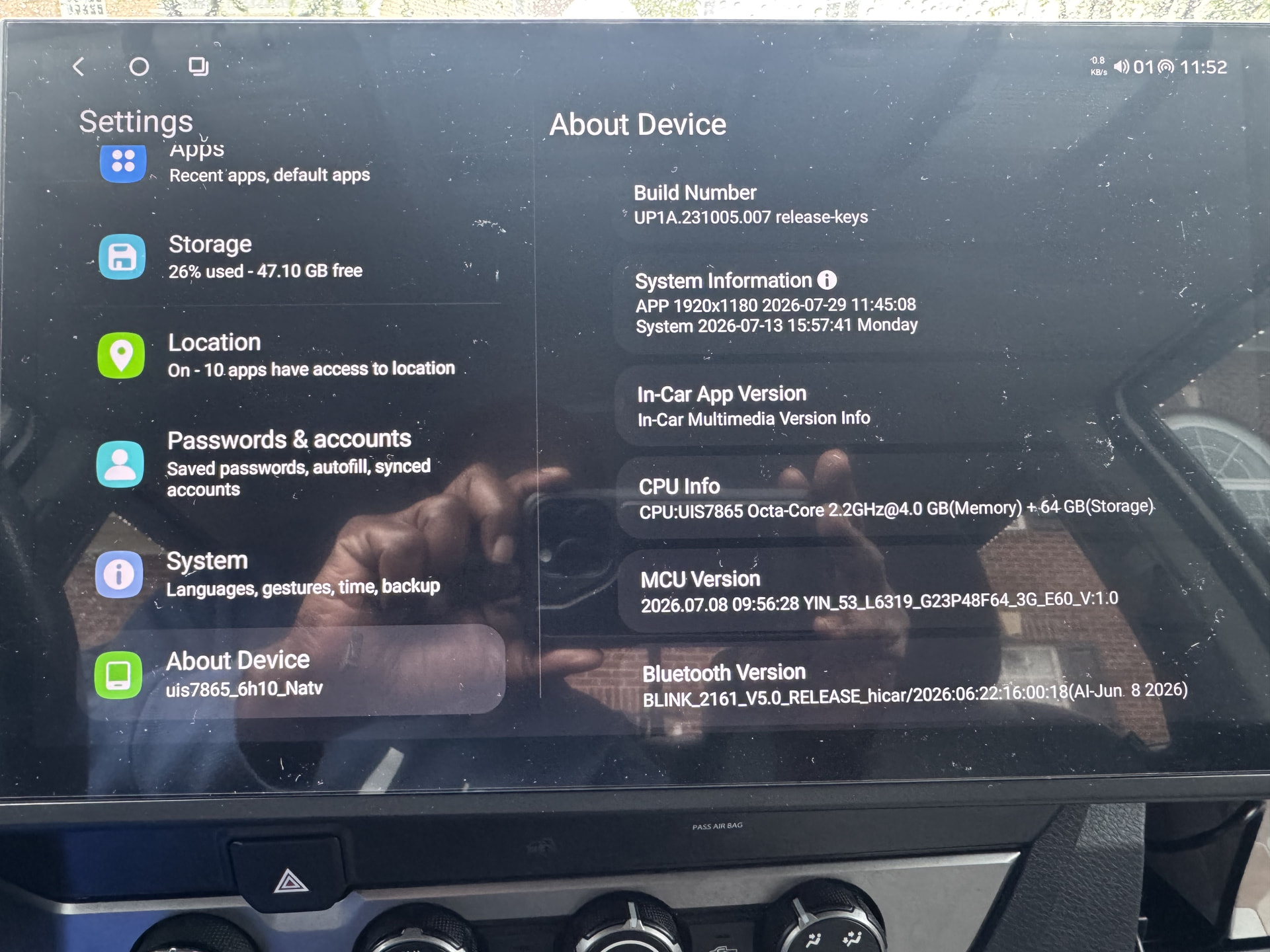
My CPU version says 7865 and the files you have available are 7862 and 7870.
Does the 7862-update file work for the 7865 CPU?
You are right; replace the file with this one.
https://cartrimhome.cn/our_dw/lsec6319update
That was it! It took only 10 seconds to reload and reboot.
Thanks!!
1 Like